VoiceIsle › iPhone as your Mac's mic
The Continuity file
Using your iPhone as your Mac's microphone, via Continuity
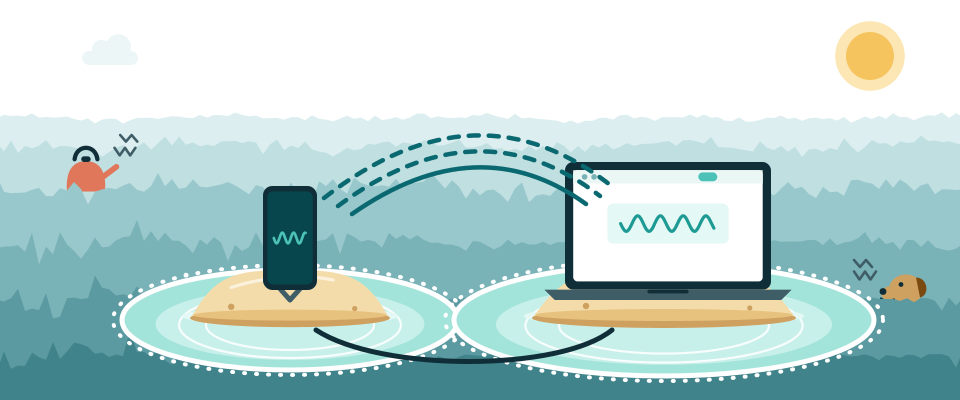
Requirements read from Apple's Continuity Camera doc — itself revised 6 May 2026 — on 20 September 2026.
Hiding inside Continuity Camera — the "iPhone as webcam" feature — is the half almost nobody uses: the iPhone's microphone is offered to the Mac as a standalone input, wirelessly or over USB. If your Mac is a 2018-era machine with a mediocre built-in mic and your phone is anything recent, this is a free hardware upgrade you already own, and it takes one visit to System Settings → Sound to switch on.
Below: the exact requirements from Apple's doc (freshly revised this spring), the selection path, when it genuinely improves calls, and the limits nobody prints.
What it needs — the full checklist
All of these come from Apple's Continuity Camera support document, and every one is a real failure point when missing:
- iPhone XR or later, running iOS 16 or later (2018-era phones onward — the same hardware floor as mic modes themselves).
- Any Mac that runs macOS Ventura 13 or later.
- Both devices signed into the same Apple Account, with two-factor authentication enabled.
- Bluetooth and Wi-Fi on, devices near each other; Continuity Camera enabled on the iPhone (it is, by default).
- Neither device sharing its connection: no iPhone hotspot in use, no Mac internet sharing.
- For wireless use, the Mac can't simultaneously be running AirPlay or Sidecar — the two features quietly compete for the same channel and this is a top cause of "my iPhone doesn't show up".
- Prefer wired? USB works too — the iPhone must trust the Mac — and doubles as charging, which matters for long calls.
- iPhone XR or lateriOS 16 or later
- Wireless or USBBluetooth and Wi-Fi on, devices near each other, or USB with the iPhone trusting the Mac
- Any Mac on Ventura 13+same Apple Account, two-factor on
- Sound → Inputselect the iPhone
Also on the checklist: neither device sharing its connection, and, for wireless use, no AirPlay or Sidecar running on the Mac.
Selecting the iPhone mic
- System-wide: Apple menu → System Settings → Sound → Input tab → select the iPhone in the device list. From that moment it's the Mac's default microphone for everything.
- Per app instead: any app with its own mic picker can select the iPhone directly, leaving the rest of the system on the Mac's mic. (The system-vs-app override logic is the same one mapped in macOS mic settings.)
- Check the automatic case: Apple's doc notes that if your Mac has no built-in or external mic at all, apps may adopt the iPhone mic on their own — Mac minis, take note.
- Place the phone deliberately. Mounted near your face beats lying flat on the desk next to a mechanical keyboard. The mic follows the phone, so put the phone where the voice is.
When it actually helps
The honest calculus: a recent iPhone carries a modern multi-mic array and Apple's current voice processing; a 2018–2020 Mac laptop carries what 2019 could solder in. The pairing shines when the Mac's mic is the weak link — older MacBook Airs, desks where the Mac sits far from the speaker, Mac minis with no mic at all — and when you want to keep working on the Mac while the phone does the listening.
It stacks with the rest of the island, too: on a call in a supported app, the Mac's own Mic Mode control still applies to the incoming iPhone feed, so Voice Isolation can ride on top of the better capture. And it's another entry in this site's running theme — before spending money on call audio, spend the hardware and software you already own. This feature costs nothing and routinely outperforms cheap USB mics bought in a panic before an interview.
The honest limits
- The phone is occupied. While serving as a mic/camera it's not comfortable to use as a phone; treat it as studio gear for the duration. Keep it charging on long calls — Apple recommends exactly that.
- Wireless is convenient, not invincible. A congested Wi-Fi environment can add glitches a cable never will. If a call matters, use USB.
- Proximity is a requirement, not a suggestion. This is a same-desk feature, per Apple's doc — not a baby-monitor-across-the-house trick.
- It fixes capture, not the room. A better mic in the same echoing kitchen is a better recording of an echoing kitchen. Processing (the right mic mode, or Krisp on the Mac for apps outside Apple's system) is the other half.
Three desk recipes
The interview rig (zero spend): iPhone on a cheap stand at chin height, USB cable to the Mac, iPhone selected under Sound → Input, Voice Isolation on in the calling app via the menu-bar Mic Mode. That stack — modern capture, wired stability, speech-first processing — is what most "which mic should I panic-buy?" questions were actually asking for.
The Mac mini fix: a mini has no built-in mic, and Apple's doc notes apps may adopt a Continuity iPhone mic automatically in exactly that case. Mount the phone, confirm the input in System Settings once, and the desktop's oldest annoyance is gone.
The standing-desk drift: if you pace while talking, remember the mic follows the phone, not you. Either keep the phone in the pacing zone's centre, or accept level swings — no mode fixes distance. Speakerphone habits transfer directly: a foot away is fine, a room away isn't.
Quick answers
Does the iPhone mic work without using the iPhone camera?
Yes. Apple documents the mic as separately selectable — Sound → Input on the Mac, or an app's own mic setting — independent of whether any app is using the iPhone's camera.
Why doesn't my iPhone appear under Sound → Input?
Run the checklist above in order: same Apple Account + 2FA, Bluetooth/Wi-Fi on, proximity, no hotspot or internet sharing, no AirPlay/Sidecar session, and Continuity Camera enabled on the phone. USB with a trust prompt is the reliable fallback.
Is there lag?
Apple doesn't publish latency figures for it, and we won't invent one. Anecdotally it's built for live calls — that's its entire purpose — and a USB connection minimises the variables.
Wired or wireless — which should I use?
Wireless for convenience, USB for anything important: it removes radio interference from the equation and charges the phone while it works.
Round out the desk setup: every macOS mic setting in one map, FaceTime's audio controls, and the iPhone mic-mode guide for when the phone goes back to being a phone.